 ROSEHELP
💵 Sales & payouts
Pay several consignors at once (Batch Payout)
Pay everyone who sold something in a date range in one go: pick the dates, add the consignors with activity, preview the amounts and press PAY OUT.
In RoseAll stores (EXPORT FOR QUICKBOOKS needs Rose Pro)
Open Batch PayoutRose
- Post your sales first (see Post your daily sales). Only posted sales are paid.
- Open Menu → Contracts and press BATCH PAYOUT in the toolbar. No contract needs to be selected.
Choose who to payRose
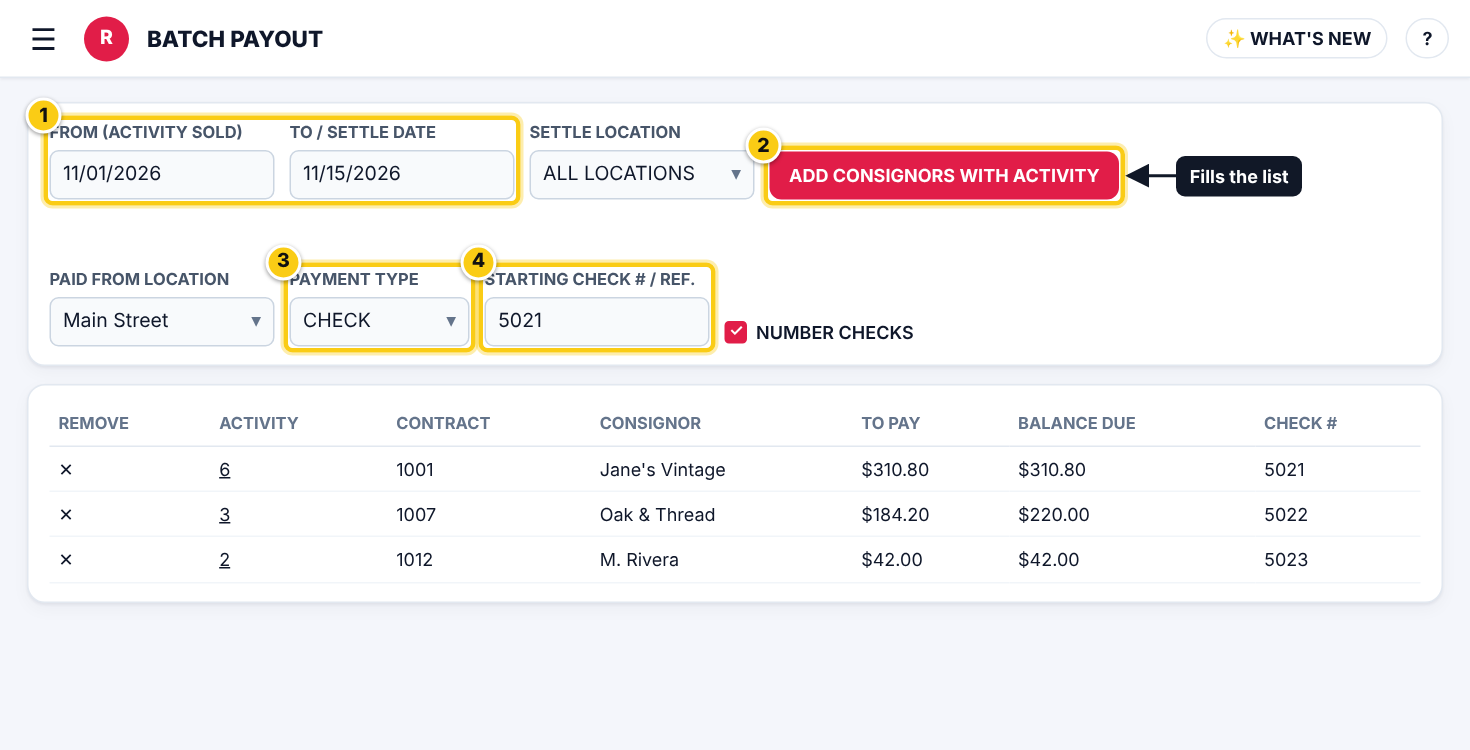
- Set FROM (ACTIVITY SOLD) and TO / SETTLE DATE. Only sales and charges dated in this range are paid.
- Pick the SETTLE LOCATION (or all locations).
- Press ADD CONSIGNORS WITH ACTIVITY. Everyone with something to pay in the range is listed. Use ADD CONSIGNOR + FIND for one more, REMOVE or REMOVE ALL to take people off.
- To leave out single sales for someone, click their ACTIVITY number, untick the lines and press SAVE.
| Field | What it means |
|---|---|
| FROM (ACTIVITY SOLD) | The first sale date to pay. Older unpaid sales, fees and charges are left for another payout. |
| TO / SETTLE DATE | The last sale date to pay. The payout itself is dated the day you pay, in your store’s time zone. |
| SETTLE LOCATION | Pay only sales made at this location, or all of them. |
| PAID FROM LOCATION | The location the money comes from (shown on checks and reports). |
| PAYMENT TYPE | CHECK, CASH or ELECTRONIC, and ROSE PAY (ACH), PAYPAL or VENMO when they are switched on for your store. |
| STARTING CHECK # / REF. | The first check number (or reference). Each consignor gets the next one. |
| NUMBER CHECKS | Tick to number the checks one after another from the starting number. |
| TO PAY | What this consignor will be paid in this batch. |
| BALANCE DUE | Everything the consignor is owed right now, including activity outside the dates. |
Preview and payRose
- Choose PAID FROM LOCATION, PAYMENT TYPE and STARTING CHECK # / REF., and add NOTES if you like.
- Press PREVIEW and check the TO PAY column.
- Press PAY OUT and confirm in PAY OUT - PLEASE CHECK.
- The result lists each payout. Paid consignors leave the list; anyone skipped stays so you can fix and pay them. The NOTE says why: OWES ... NOT PAID (fees are more than sales), PAYS MORE THAN THE BALANCE (an older fee or charge is outside the dates; pay them on the contract’s PAYOUT page), ENTER A CHECK NUMBER, CHECK # ... WAS ALREADY USED, or THE AMOUNT CHANGED SINCE THE PREVIEW (a sale was posted meanwhile; press PREVIEW again).
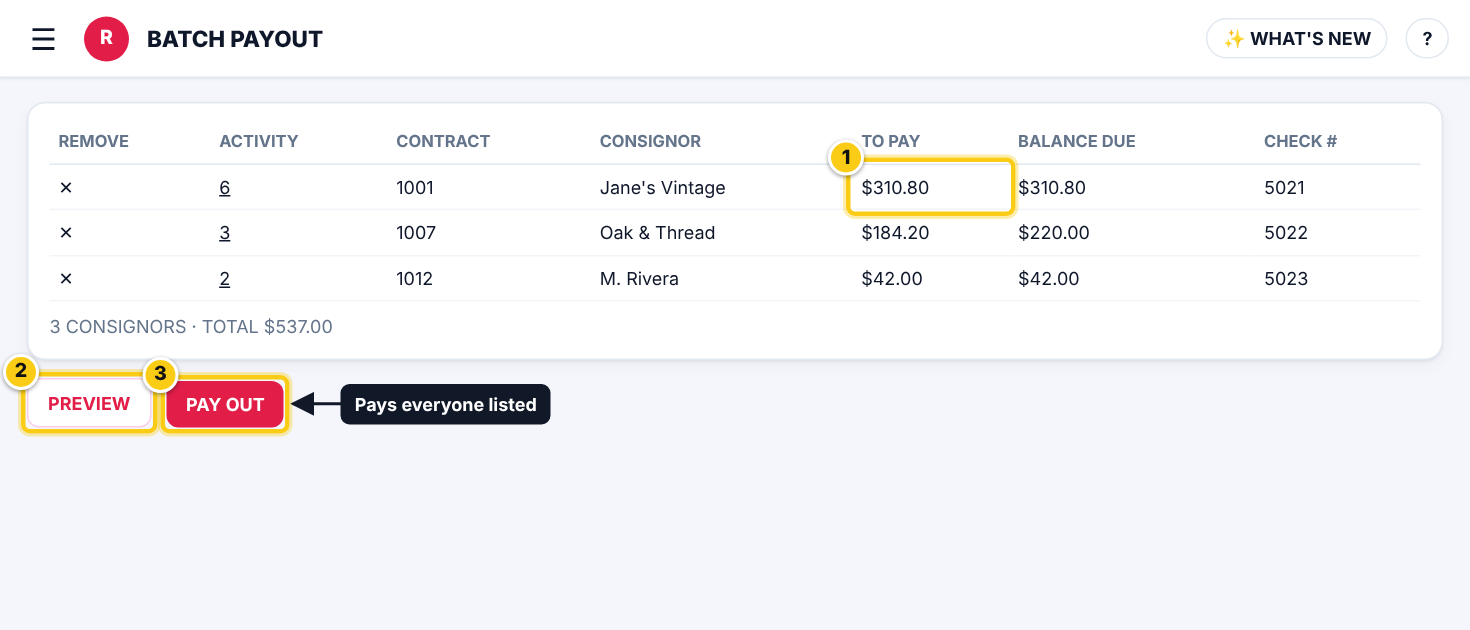
- Rose then offers to print the checks and send payout notices.
- With Rose Pro, EXPORT FOR QUICKBOOKS gives a QuickBooks Online journal entries file or a bank upload file of the payouts.
- A payout made by mistake can be undone from that contract’s PAYOUT page (PAYOUT RECEIPTS, UNDO).
Who can do this (user rights)
| Right in User Maintenance | What it allows | Who has it at first |
|---|---|---|
| Contracts: payouts (PAYOUT, BATCH PAYOUT) | PAYOUT and BATCH PAYOUT. | Users with Contracts ticked |
| Contracts: undo payouts | UNDO on a payout receipt. | Administrators and managers |
Questions
Why is someone with a balance not in the list?
Their sales are outside the FROM and TO dates, or not posted yet. Post the sales batch first, or widen the dates.
Can I pay someone less than they are owed?
Click their ACTIVITY number and untick the sales to leave for later. For a part payment use the contract’s own PAYOUT screen.
Does Batch Payout send to QuickBooks?
With Rose Enterprise and QuickBooks Online connected, payouts are recorded automatically. With Rose Pro you can download EXPORT FOR QUICKBOOKS after paying.