 ROSEHELP
💵 Sales & payouts
Charge a fee, rent or credit to a consignor's account (activities)
Post a one-off fee, charge, credit or in-store purchase to a consignor's or vendor's account. It changes their balance and shows on their activity and payouts.
In RoseAll stores
Post an activityRose
- Open Menu → Contracts, find the consignor or vendor and press ACTIVITIES.
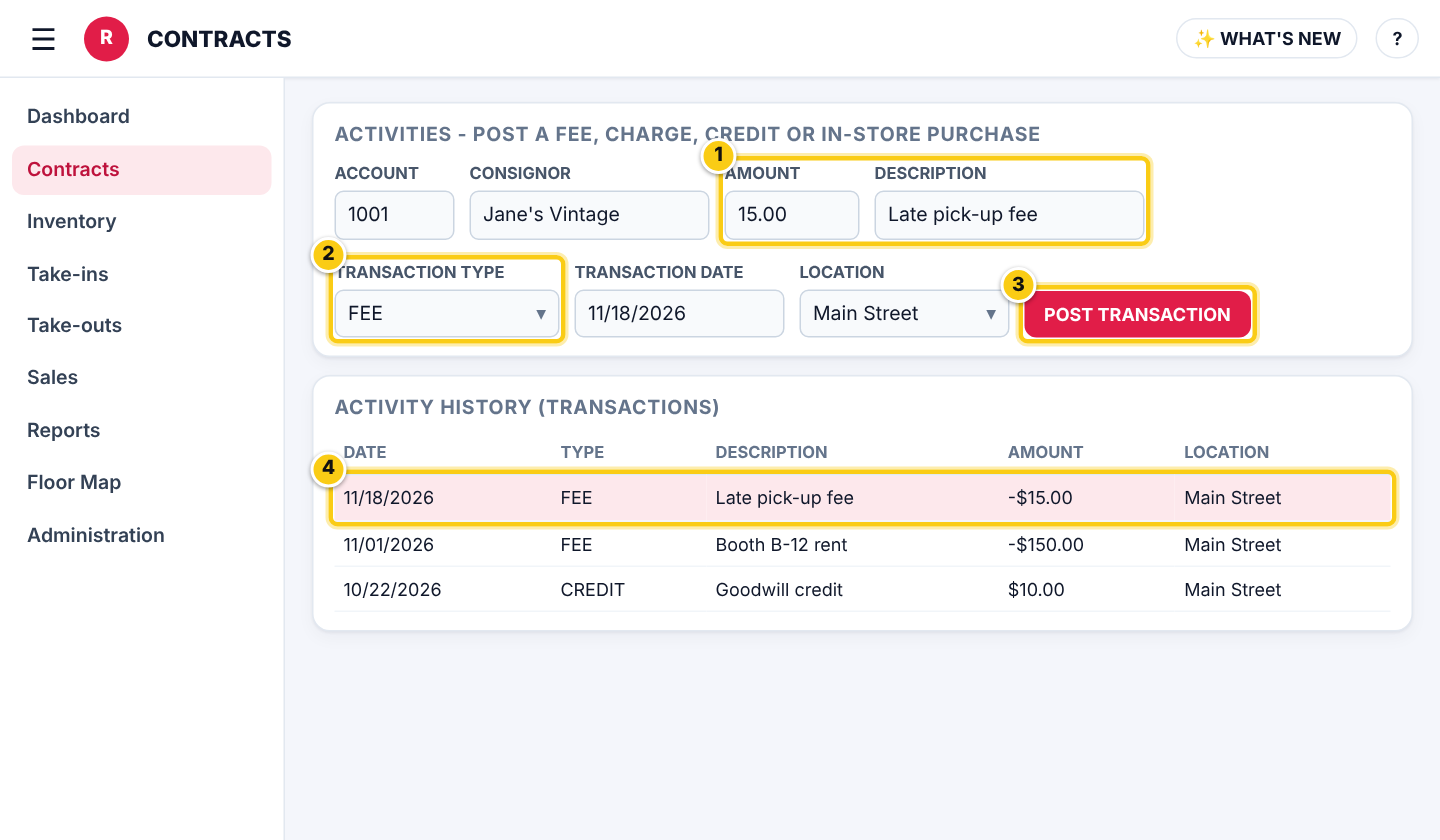
- Under ACTIVITIES - POST A FEE, CHARGE, CREDIT OR IN-STORE PURCHASE, type the AMOUNT (with cents, e.g. 25.00) and a DESCRIPTION.
- Pick the TRANSACTION TYPE, the TRANSACTION DATE and the LOCATION.
- Press POST TRANSACTION. The account’s balance changes at once and the activity shows in ACTIVITY HISTORY (TRANSACTIONS) below.
Which type to useRose
- FEE - a charge for your services, such as rent or a late fee. It lowers the balance and shows on the Fees reports.
- CHARGE - any other amount the consignor owes you. It lowers the balance.
- CREDIT - money you add to the account, for example a refund of a fee or a goodwill credit. It raises the balance.
- IN-STORE PURCHASE - the consignor bought something in the store with their balance. It lowers the balance.
Fix a mistakeRose
- Open the contract’s PAYOUT page: activities that haven’t been paid out yet are listed there and can be deleted. Deleting a sale there takes it off the account only: the item isn’t put back in stock.
Charging rent every month?Rose
Use recurring billing instead, so Rose posts the rent on schedule: see Charge a consignor or vendor every month.
Who can do this (user rights)
| Right in User Maintenance | What it allows | Who has it at first |
|---|---|---|
| Contracts | Opens Contracts and ACTIVITIES to post fees, charges, credits and in-store purchases. | Users with Contracts ticked in User Maintenance |
Questions
Can the balance go below zero?
Yes. A fee or charge bigger than the balance leaves the account owing you until they sell or pay.
Where do these show?
In the contract's ACTIVITY HISTORY, on the next payout, and fees on the Fees report.