 ROSEHELP
🎨 Labels
Set up Rose Pro printing (PrintNode / KloudPrint)
Print labels, receipts and reports straight to your printers with no PDFs or print dialogs. The SET UP PRINTING wizard takes about five minutes.
In RoseRose Pro
Start the wizardRose
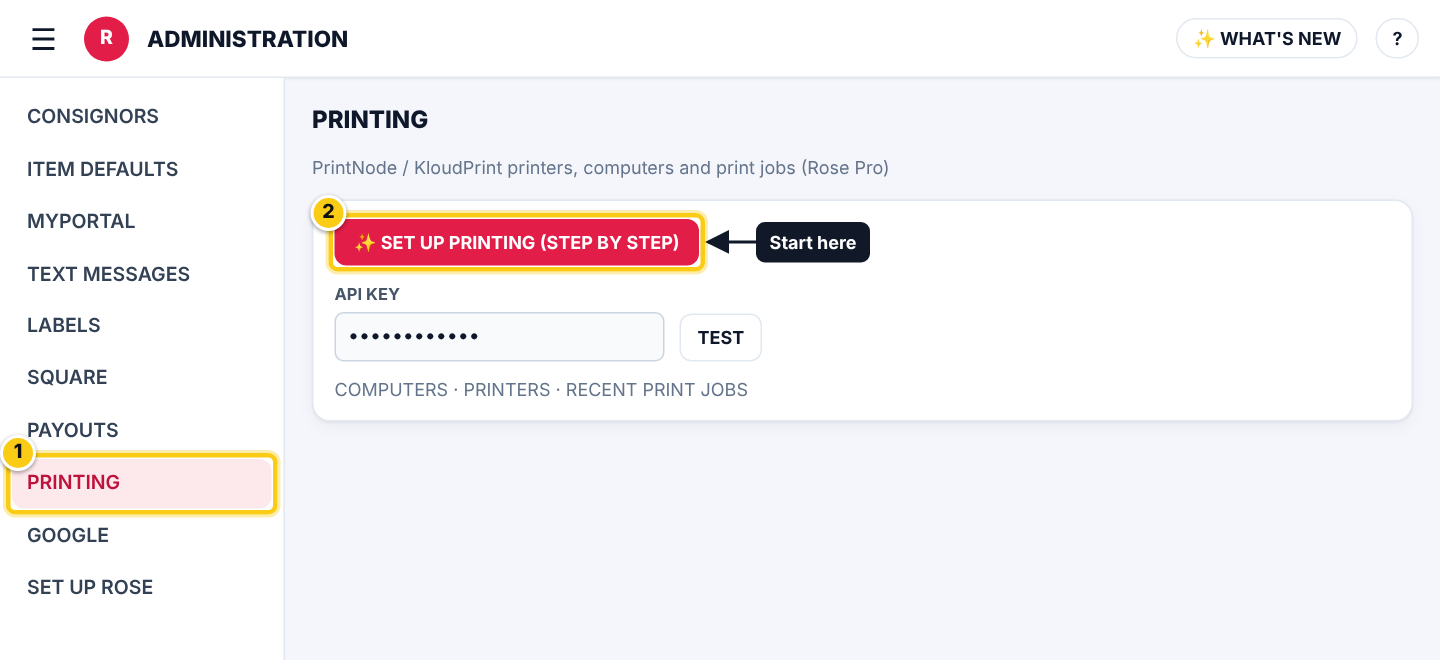
- Open Administration → SETTINGS → PRINTING.
- Press SET UP PRINTING (STEP BY STEP). (Rose Pro stores are also offered the wizard when they sign in; REMIND ME TOMORROW or DON’T ASK ME AGAIN put it off.)
Step 1: your KloudPrint accountRose
- New to printing: type the E-MAIL and a PASSWORD (8 characters or more) twice and press CREATE MY KLOUDPRINT ACCOUNT. Rose makes the account for you.
- Your store already has one: press RECONNECT MY KLOUDPRINT ACCOUNT.
- Have your own PrintNode account: paste its PRINTNODE API KEY and press USE THIS KEY.
- Keep the e-mail and password: you sign in to the PrintNode app with them in step 2.
Step 2: install the PrintNode appRose
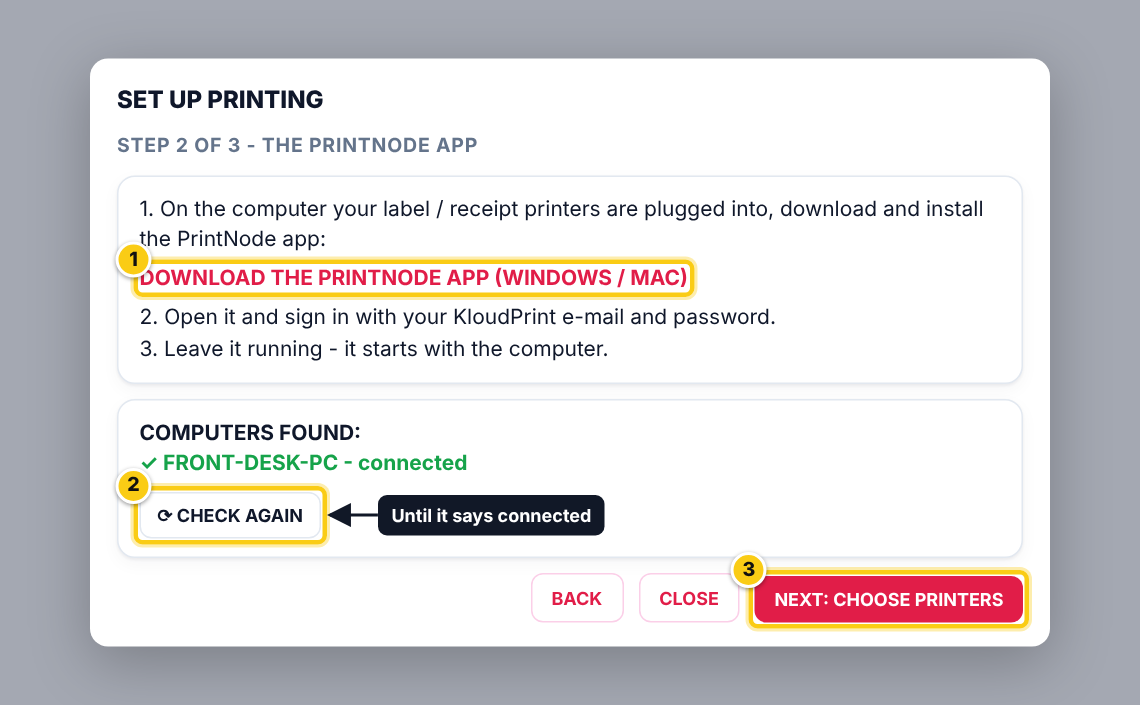
- On the computer your label and receipt printers are plugged into, click DOWNLOAD THE PRINTNODE APP (WINDOWS / MAC) and install it.
- Open it and sign in with the KloudPrint e-mail and password.
- Leave it running (it starts with the computer). Back in Rose, press CHECK AGAIN until the computer shows as connected under COMPUTERS FOUND.
- Press NEXT: CHOOSE PRINTERS.
Several computers with printers? Install the app on each one with the same sign-in.
Step 3: choose your printersRose
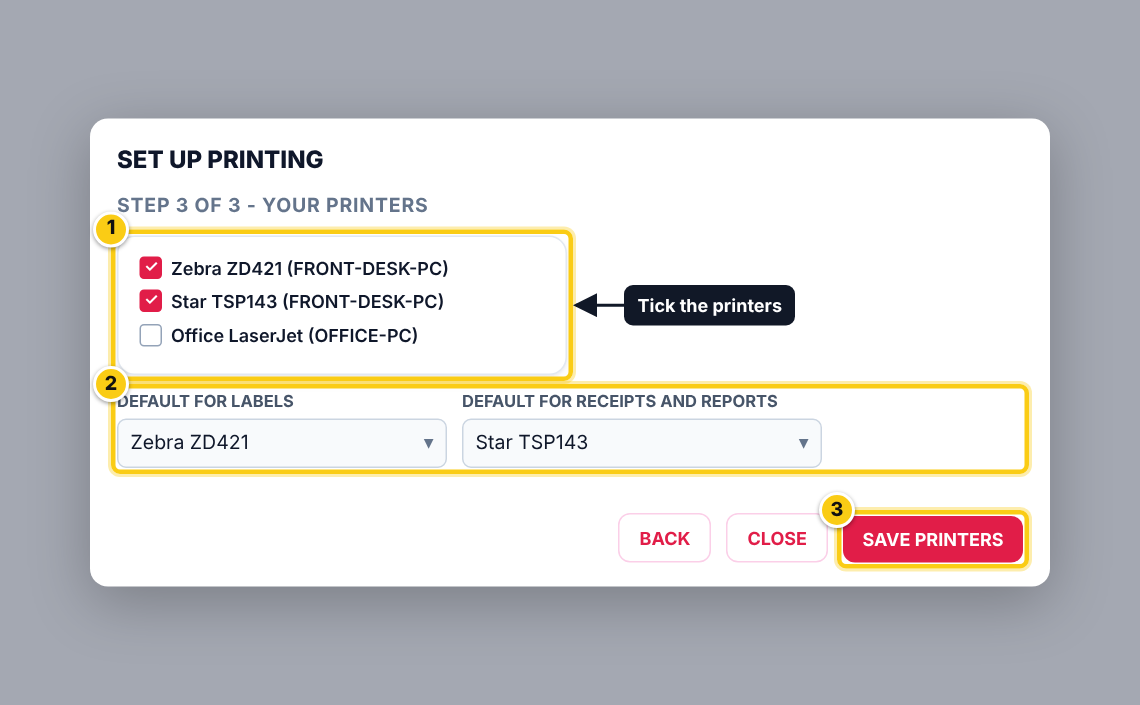
- Tick the printers Rose should print to.
- Pick DEFAULT FOR LABELS and DEFAULT FOR RECEIPTS AND REPORTS.
- Press SAVE PRINTERS. Rose says Printing is set up; look for the PRINT buttons in Inventory, Take-ins, Sales and Payouts.
| Field | What it means |
|---|---|
| DEFAULT FOR LABELS | Where item labels print unless you choose another printer. |
| DEFAULT FOR RECEIPTS AND REPORTS | Where take-in receipts, payout receipts and reports print. |
| DEFAULT LABEL TYPE | In Settings → PRINTING, the label size each label printer is loaded with. |
| CALIBRATE (ZEBRA) | Makes a Zebra printer measure its labels again when it prints in the wrong place or skips labels. |
Later changesRose
- Administration → SETTINGS → PRINTING lists your computers, printers and recent print jobs. Use MAKE DEFAULT FOR LABELS / MAKE DEFAULT FOR RECEIPTS to change defaults and TEST to check the connection.
- Label sizes and what prints on them: Administration → SETTINGS → LABELS and the LABEL DESIGNER.
Who can do this (user rights)
| Right in User Maintenance | What it allows | Who has it at first |
|---|---|---|
| Administration and Subscription Plans | Opens Administration → SETTINGS. | Users with Administration ticked in User Maintenance (normally administrators) |
Questions
Do I need Rose Pro?
Yes. Without Rose Pro, labels and receipts open as PDFs you print from the browser (see Print a label (Rose Retail)).
My computer shows as not connected.
Open the PrintNode app on that computer and check it is signed in with the KloudPrint e-mail, then press CHECK AGAIN.
The printer doesn't appear in step 3.
Switch it on and make sure it prints from that computer normally; the PrintNode app finds it by itself. Then press CHECK AGAIN.